Install VMware Player 5.0 in Ubuntu 12.04
VMware Player 5.0 has been released and this brief tutorial is going to show you how to install it in Ubuntu 12.04 .
This release brought many changes, including a fix to this annoying error that was found in earlier versions. "Unable to start services. See log file /tmp/vmware-root/mdconfig-23331.log for details"
If you have been following our tutorials installing VMware Player, you’ll notice that we used a work-around to resolve the bug above. Now you won’t have to apply that patch. Just download VMware Player 5.0 package and install.
Objectives:
- Install VMware Player 5.0 in Ubuntu 12.04 (Precise Pangolin)
- Enjoy!
To get started, press Ctrl – Alt – T on your keyboard to open the terminal. When it opens, run the commands below to install these packages.
sudo apt-get install build-essential linux-headers-`uname -r`

After that go and download VMware Player package from this site. You must be logged-in in order to download it. If you don’t have an account, register first and go download the packages.
After downloading the package, change to your download folder (cd ~/Downloads) and run this command to make the file executable.
chmod +x VMware-Player-5.0.0-812388.i386.bundle

Finally, run the commands below to install VMware Player.
sudo ./VMware-Player-5.0.0-812388.i386.bundle

Follow the wizard until you finish installing. After installing, go to Dash and search for VMware Player.
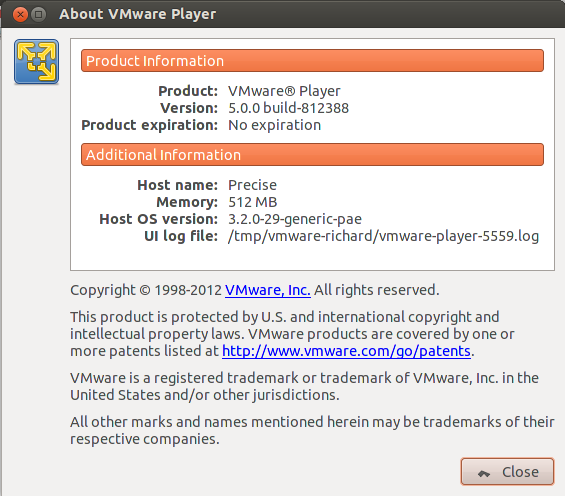
Enjoy!
內容來自此連結。
